 Radbin
The short answer: sync your camera, screen and microphone. Cut the retakes and the long pauses. Hide the jump cuts. Bring in the screen, titles and captions. Clean the voice, mix it to about -14 LUFS, give it a light colour pass, and export with YouTube's recommended settings. Each step below links to a full guide.
I've edited talking-head and tutorial videos for my channel since 2016. These days I let AI make the first edit, in a plugin I built, Radbin for Premiere, and I'll show you where it helps and where the work is still yours. Adobe renamed Premiere Pro to Adobe Premiere in January 2026; I use both names.
A two-camera talking-head edit, start to finish, 20 minutes.
What are the steps to edit a talking-head video?
| Step | By hand | With AI |
|---|---|---|
| Sync | Synchronize the clips by their sound | Lined up by sound automatically |
| Rough cut | Scrub for retakes and long pauses | Premiere finds pauses and filler words; Radbin also removes retakes, each with its reason |
| Pacing | Trim every join | A pace you choose, with soft joins |
| Jump cuts and the screen | Punch-ins, crops, picture in picture | Camera switches, layouts, zooms on your words |
| Titles and captions | Type, animate and style them | Titles on the word; captions with an SRT |
| Sound, colour, export | Enhance Speech, loudness, Color Mode | Still yours |
| Shorts | Find the moments, reframe them | Found and made vertical for you |
How do you set up and sync the camera, screen and microphone?
Put everything on one timeline: your camera, the screen recording if it's a tutorial, and the microphone's audio if it was recorded separately. Select them and choose Clip › Synchronize with the audio option, so they line up by their sound. For two or more cameras, a multi-camera source sequence does the same and lets you switch angles as it plays: how to edit a multicam podcast in Premiere.
How do you cut retakes, pauses and filler words?
The fastest way by hand is to read, not scrub. Open the Text panel and transcribe the sequence: deleting a sentence in the transcript deletes it from the timeline. The transcript's filter finds every pause and filler word ("uh", "um"), and you can delete them all at once. As the team behind Premiere Gal put it, "You often start with a longer edit" (Adobe's blog), and this is where it gets short.
What Text-Based Editing can't do is remove retakes, because a retake is speech, not silence. The full method, with the tools that do: how to remove silence in Premiere Pro, and your retakes too.
How tight should the pacing be?
Tighter than you'd talk, looser than a robot. Cut just outside the words, leave a little room before each new sentence, and soften each join with a short audio crossfade so you don't hear a click. Match the pace to the video:
- Snappy: for Shorts and fast explainers.
- Tutorial: keep a pause while something happens on screen, so viewers can follow.
- Podcast or relaxed: more room around each cut, and a few ums left in, so it still sounds like a conversation.
How do you hide jump cuts?
Every cut in one continuous shot makes your head jump. Three fixes: scale in a little on every other cut (a punch-in), switch to a second camera, or cover the join with your screen recording or B-roll. Punch-ins and zooms, done well: how to zoom in on a screen recording in Premiere Pro.
When should the screen or B-roll take over?
Show your face for the hook, opinions, stories and the call to action; show the screen when something happens on it, with your face in a corner bubble; and use B-roll for what you're describing but can't show. The team behind Premiere Gal says it plainly: "We include a lot of zooms in our videos." The guides: a face cam on a screen recording, and AI B-roll in Premiere.
How do you add titles and captions?
Titles go on the word they belong to: a name, a number, a step, a call to action, in for a few seconds and out. Captions go last, from the final sequence, because Text-Based Editing doesn't carry captions through your cuts. The guides: how to animate text in Premiere Pro and how to add captions, animated word by word.
How loud should a YouTube voice be?
- Clean it: Enhance Speech (Enhance Audio in 27.0) removes room echo and noise. Keep the mix amount below 100% so it still sounds like you.
- Duck the music: tag the music as Music and use Auto Ducking; in 27.0 its keyframes follow your trims.
- Hit the target: about -14 LUFS integrated, with peaks under about -1 dBTP. YouTube turns louder uploads down to about that level, but never turns quiet ones up, so a quiet video stays quiet. Set it in Export › Effects › Loudness Normalization; Premiere's Auto-Match uses a broadcast level, so set your own target.
How much colour does a talking head need?
Less than you think: correct the white balance and the exposure, keep skin natural, and match your two cameras to each other. Premiere 27.0's new Color Mode, which Adobe calls "a new color grading experience right into Premiere, built for editors", makes that quicker. A strong look is a choice, not a requirement.
What export settings does YouTube want?
From YouTube's recommended upload settings:
| Setting | Recommended |
|---|---|
| Container and codec | MP4, H.264 High Profile, fast start |
| Frame rate | The rate you recorded at |
| Video bitrate, 1080p | 8 Mbps at 24 to 30 fps, 12 Mbps at 48 to 60 fps |
| Video bitrate, 4K | 35 to 45 Mbps at 24 to 30 fps, 53 to 68 Mbps at 48 to 60 fps |
| Audio | AAC-LC, 48 kHz, 384 kbps stereo |
| Colour | BT.709 |
How long does editing take, and how can AI make it faster?
By hand, editors' own estimates for a 10-minute YouTube video run from about 4 hours for the experienced to 20 for a beginner. Most of it is the rough cut and the shots. That's the part AI now does well.
In Radbin for Premiere, Claude Opus 5.5 reads a transcript of your video and makes the first edit in a new sequence: it removes the retakes and long pauses, keeping the take you finished, lays out your camera and screen, places zooms and titles, and can add captions and find Shorts. On my launch video it took a 5:15 recording to 3:25 in about a minute and a half, with 12 parts removed, 8 shots, 4 zooms and 5 titles, for 24 credits. Watch (7:25)
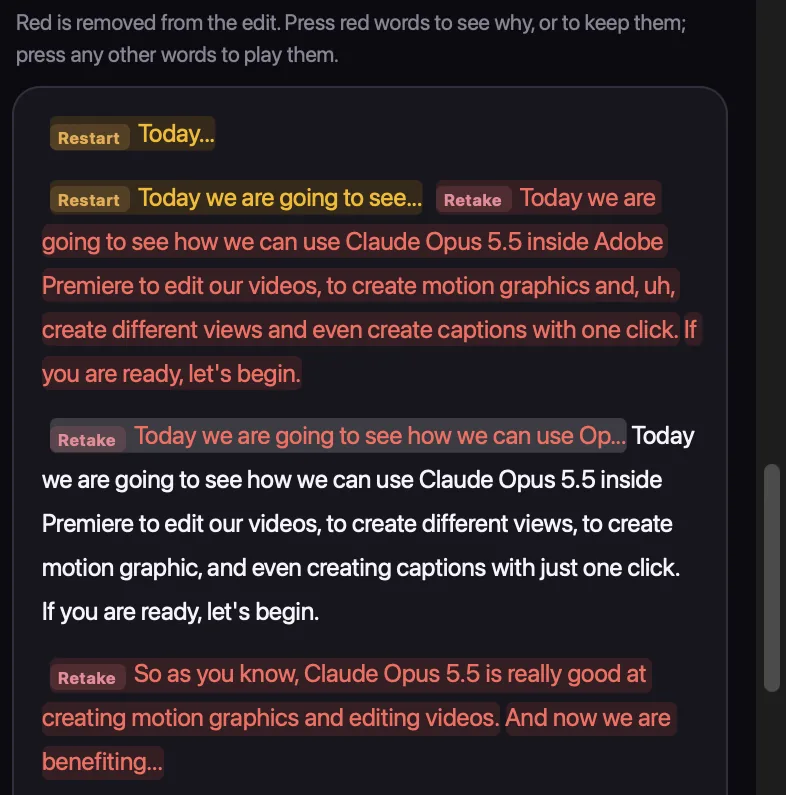
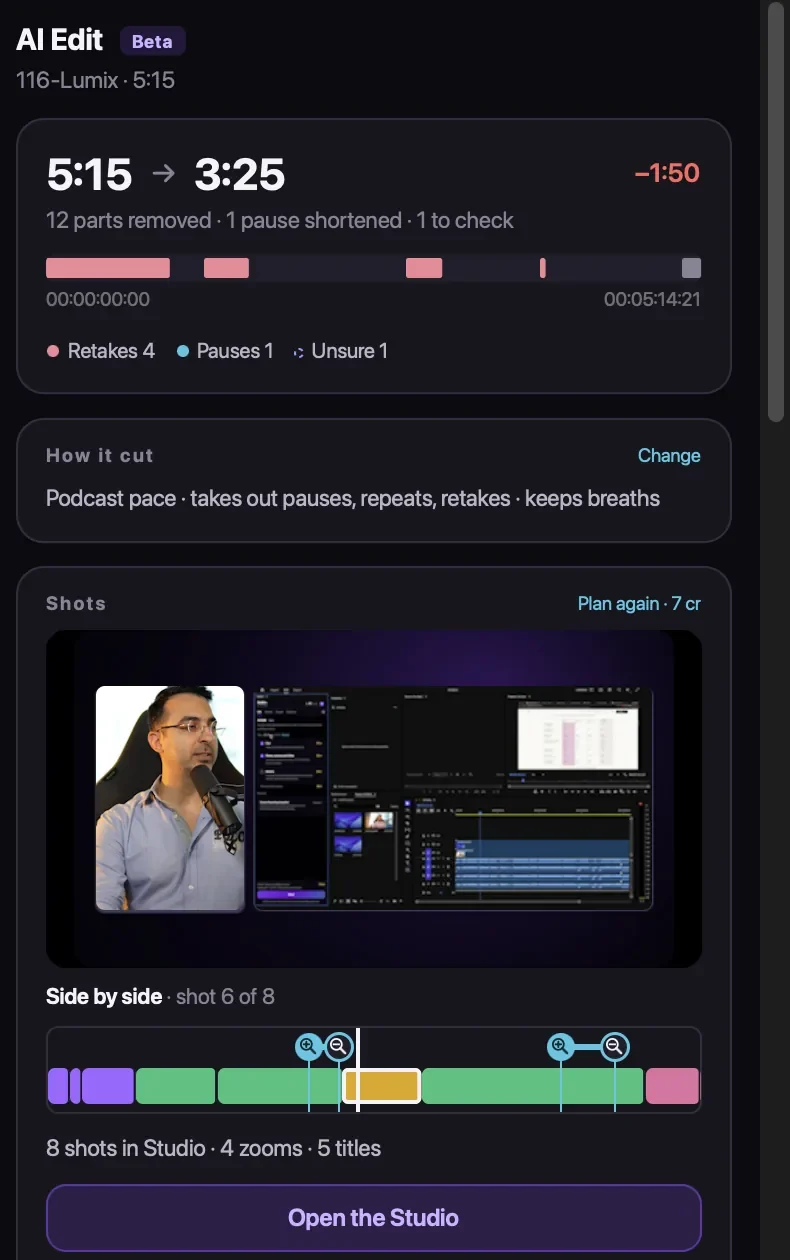
It understood the moments where I said a line once, stopped myself, and said "okay, let's try again". It even cut a part I'd marked out loud while recording: "Claude, cut it from here," and later, "till here". As I put it, "you don't need to do all the hard work yourself, you just give the orders." Watch (13:04)
What stays yours: colour, music, cleaning up the voice, the loudness and the export. Premiere 27.0's own AI Assistant (in beta) can build a rough stringout too, for Firefly credits. How the two approaches compare, and every other tool: Claude video editing in Premiere and the best AI plugins for Premiere Pro.
How do you turn it into Shorts?
Pick the moments that stand on their own, a tip, a result, a story with its ending, and make each one vertical with captions. The whole method: how to turn a long video into Shorts in Premiere Pro.
The first edit of your next video, in one press
Radbin for Premiere cuts the retakes and pauses, lays out your camera and screen, and adds zooms, titles and captions in a new sequence. Your first 40 credits are free.
Watch Radbin on YouTube
Real tests and tutorials, inside Photoshop and Premiere. See the whole channel.
 21:44Photoshop 2027 new features vs Radbin
 16:20GPT Image 2.6 in Photoshop: images, vectors and GIFs
 7:37Upscale a low res portrait to 4K in Photoshop
 19:25Relight any photo in Photoshop with AI
 20:03Nano Banana 2.1 vs GPT Image 2 and FLUX 3: ten tests
 14:31Photoshop Relight vs Radbin Lightsmith
 10:24Retouch skin without losing the texture
 9:28Every Radbin tool in 9 minutes
 9:50Fix the focus of any photo after it was taken
 1:43Radbin changes only what you ask