 Radbin
The short answer: select the clip, open Effect Controls, and keyframe Scale and Position where the zoom starts and where it ends. Right-click the keyframes for Ease Out and Ease In so it glides. For sharp text, record the screen at 4K and use Set to Frame Size, so a 2× zoom needs no upscaling. As of Premiere 27.0 there's still no automatic zoom; plugins add one.
Full disclosure: one of the auto zoom tools below, Radbin for Premiere, is mine. Adobe renamed Premiere Pro to Adobe Premiere in January 2026; I use both names.
Zooms in my Premiere video, from 11:53.
How do you zoom in on a screen recording in Premiere Pro?
- Select the clip and put the playhead where the zoom should start.
- In Effect Controls, under Motion, click the stopwatch next to Scale and next to Position. That sets the first keyframes at the current values.
- Move the playhead to where the zoom should finish, about half a second to a second later.
- Raise Scale (for example to 200%) and change Position until the part you're talking about is in the middle of the frame.
How do you make the zoom smooth?
- Ease it: right-click the first keyframe and choose Temporal Interpolation › Ease Out, and the second › Ease In. The move starts gently and settles instead of stopping dead.
- Keep it quick: around 0.8 seconds, fast at first and slow at the end, feels natural; that's the move my plugin uses.
- Add motion blur: animate the zoom with the Transform effect instead of Motion, untick Use Composition's Shutter Angle, and set the Shutter Angle to 180. Set it before you keyframe, as it can shift the position.
Why is my zoom blurry?
Because you're enlarging pixels that aren't there. A 1080p recording zoomed to 200% shows a quarter of the screen at double size, and small text turns soft. The fix starts before you edit:
- Record at 4K and edit in a 1080p sequence. Right-click the clip and choose Set to Frame Size (not Scale to Frame Size, which resamples it): the clip sits at 50%, so zooming to 100% doubles it with every original pixel.
- Make the app bigger before you record: scaling the interface you're recording to 110 to 125% keeps text readable even without a zoom.
- Set the default for new clips in Preferences › Media › Default Media Scaling.
Where and when should a tutorial zoom?
A zoom should answer the viewer's question "where is that?" These are the rules I gave Claude in my plugin, after editing a lot of my own tutorials:
- Zoom in when your words point at something small on the screen while it changes there: "click here", "this button", "type the prompt", "in this panel".
- Hold the zoom through the sentence, and zoom out when the talk moves on or the whole screen changes.
- Don't overdo it: rarely more than one zoom every 15 seconds.
- Zoom on yourself for a punchline or a strong opinion, about 1.4×. A punch-in on a face reads best between about 112% and 125%; under 108% it just looks like a mistake.
How do you pan or zoom out?
To pan while zoomed in, add Position keyframes only: the scale stays and the frame slides across the screen. To zoom out, add a second pair of keyframes that returns Scale and Position to where they started, eased the same way.
Does Premiere have auto zoom in 2026?
No. Premiere 27.0, released at Adobe MAX on 10 November 2026, added eight new effects, among them a Zoom Blur, and an AI Assistant panel in beta, but zooms are still keyframes you set yourself. Automatic zooms come from screen recorders that zoom where you click, or from plugins inside Premiere.
Which auto zoom tools work with Premiere?
| Tool | Runs on | Zooms follow | In Premiere | Price |
|---|---|---|---|---|
| Keyframes by hand | Premiere | You | Editable | In your plan |
| Screen Studio | Mac | Your clicks | Baked into the video | $9 a month, yearly |
| Tella | Mac, Windows, Chrome | Clicks and the cursor | Baked into the video | From $13 a month, yearly |
| Cursorful | Chrome | Your clicks | Baked into the video | Free for non-commercial use |
| Camtasia | Mac, Windows | You (zoom and pan) | Baked into the video | $179.88 a year |
| AutoCut AutoZoom | Premiere, Resolve | Cuts, speech, AI | Editable keyframes | 14-day trial, then its plans |
| Radbin for Premiere (mine) | Premiere 26.3 or newer | Your words and what changes on screen | Editable in its Studio | About 2 credits a minute, 40 free |
Prices from each tool's own page on 17 November 2026. A recorder bakes its zooms into the video it exports, so set them there before you edit; a plugin places them on your timeline, where you can still change them.
How does Radbin add zooms inside Premiere?
In Radbin for Premiere, Claude decides the zooms while it plans the edit: on the screen when your words point at something small there, and on you for the big moments. The panel then finds the part of the screen that changes most, and zooms there; if no part stands out, there's no zoom. "It automatically also decide where to zoom," as I said in the video. Watch (11:53)
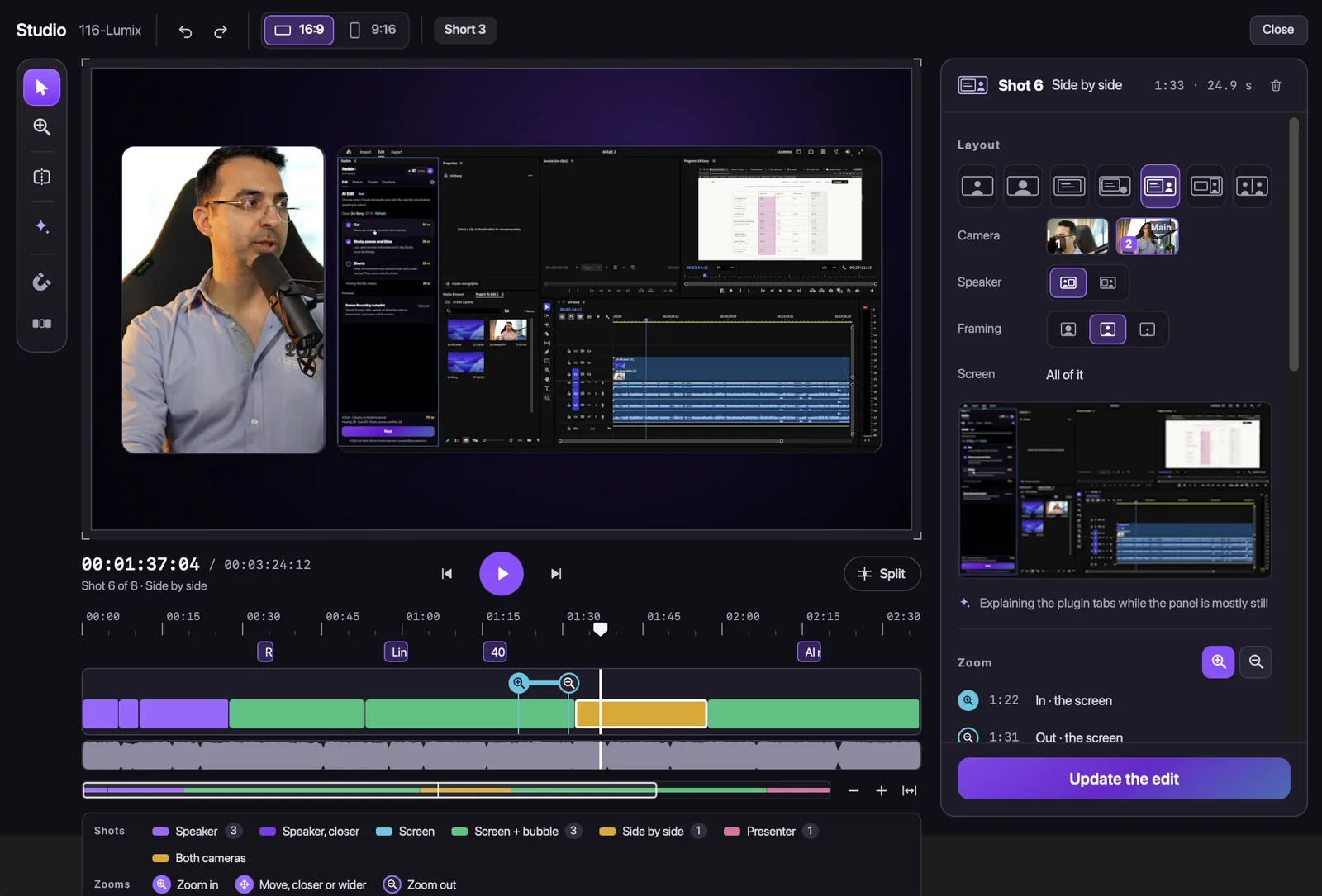
- Every zoom shows why it's there, and you can move it, change the part it zooms to, or remove it. "If it is not correct, like here, you can just change it."
- Add your own: take the Zoom tool (Z) and drag a box over the area you want, then size it by a corner. Option-click, or Zoom out here, adds a zoom out.
- The move: 0.8 seconds, fast then slow, up to 3×, written into your new sequence as ordinary Scale and Position keyframes.
Cost: the zooms come with the full edit, about 4 credits a minute, or about 2 a minute for the shots, zooms and titles without the cuts. Zooms you place yourself and every update are free. One tip: change zooms in the Studio rather than by hand in Premiere, because an update rebuilds the edit. More on the rest of it: how Claude edits video inside Premiere.
Zooms that follow your words, inside Premiere Pro
Say "click here" and the screen zooms in on it. Radbin for Premiere places the zooms, and you move, resize or remove each one in its Studio. Your first 40 credits are free.
Watch Radbin on YouTube
Real tests and tutorials, inside Photoshop and Premiere. See the whole channel.
 21:44Photoshop 2027 new features vs Radbin
 16:20GPT Image 2.6 in Photoshop: images, vectors and GIFs
 7:37Upscale a low res portrait to 4K in Photoshop
 19:25Relight any photo in Photoshop with AI
 20:03Nano Banana 2.1 vs GPT Image 2 and FLUX 3: ten tests
 14:31Photoshop Relight vs Radbin Lightsmith
 10:24Retouch skin without losing the texture
 9:28Every Radbin tool in 9 minutes
 9:50Fix the focus of any photo after it was taken
 1:43Radbin changes only what you ask