 Radbin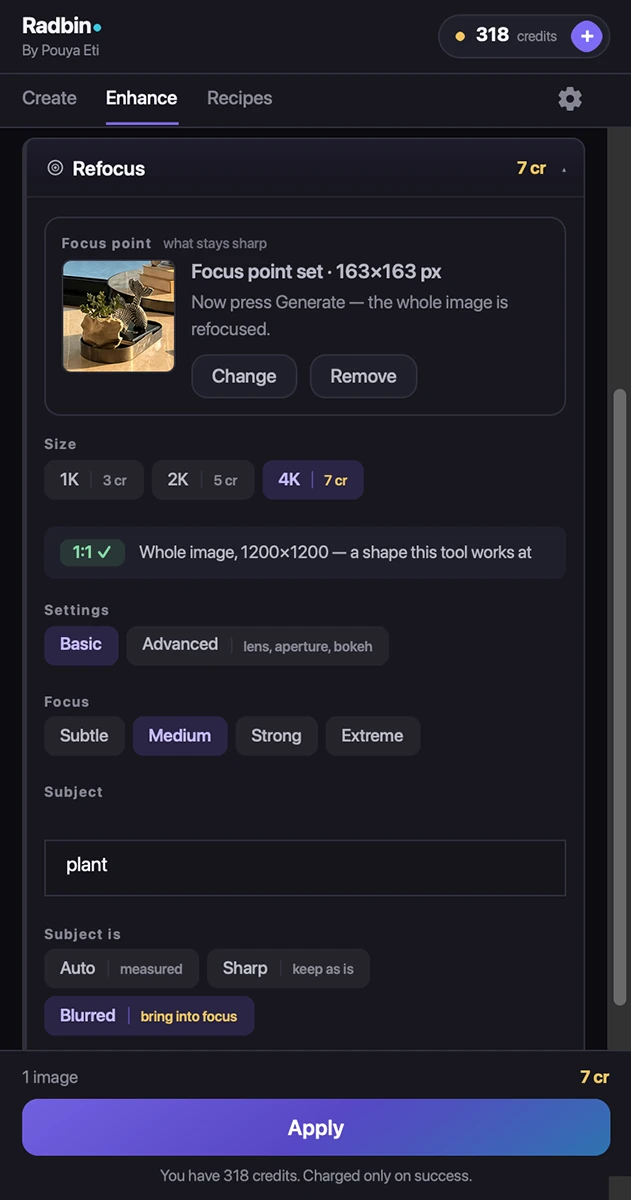
This is the how-to. The Refocus tool page has the four-focus-point example, what it costs and the questions people ask.
Basic
- Select your subject with any tool. Object Selection works well.
- On Enhance → Refocus, click Use my selection as the focus point. A thumbnail confirms it.
- Pick how much blur you want (Light, Medium, Strong) and click Apply. Nothing else needs selecting: Refocus works on the whole image.
Advanced: the Lens Lab
Switch to Advanced to choose a lens (35 mm wide to a 135 mm telephoto, a macro, a tilt-shift) and an aperture from f/1.2 to f/16. The blur, its falloff and its bokeh follow the optics you picked, and the layer is named after them, for example Refocus · 85 mm portrait · f/1.8.
Keeping your subject as shot
By default Refocus keeps your subject's own pixels: the result is placed, your subject is pasted back on top through an exact mask, and grouped. If the subject in the original is itself soft, the panel measures that and lets the AI rebuild it instead. You can force either behaviour with the Subject chips.
The whole image is sent at the nearest shape the model supports; the panel says beforehand what will be left out, so crop first if a full frame matters.