 Radbin
The short answer: for small things on a simple background, the Remove tool is free and takes seconds. For grass, sky and walls, Content-Aware Fill is free and copies your own pixels. For large objects in busy scenes, Generative Fill draws new pixels, for credits. To take a person out with their reflection or shadow, Photoshop 2027's Remove related elements does it in one go, but it changed a third of my photo. And when nothing else may change, a selection edit like Seedream 5.5 in Radbin keeps every pixel outside your selection.
Full disclosure: I make Radbin. The lake photo and the change maps are real results from my Photoshop 2027 test, so you can judge them yourself.
The removal part of my Photoshop 2027 video, from 10:47.
Which Photoshop tool removes objects best?
| Way | Best for | Changes outside the selection? | Cost |
|---|---|---|---|
| Remove tool, healing brushes | Small objects, people in the background, wires | Only where you paint | Free |
| Content-Aware Fill | Grass, sky, walls, repeating texture | No | Free |
| Generative Fill | Large objects in busy scenes | No, it's masked to the selection | 1 credit with Firefly, up to 40 with partner models |
| Remove related elements | An object with its reflection or shadow | Yes: 36% of my photo | 10 credits, more with Enhance |
| Seedream 5.5 in Radbin | An object with its reflection, nothing else touched | No | 3 or 4 Radbin credits |
1. How do you remove an object with the Remove tool?
- Choose the Remove tool, in the Healing Brush group (J).
- Make the brush a little wider than the object and paint over all of it, or draw a loop around it.
- Let go. Photoshop fills the area from what's around it.
In the options bar, Mode decides how it fills: with generative AI off, on, or Auto to let Photoshop choose. Removing with the brush costs no credits. Paint over the whole object, its shadow included, or a piece of it stays behind.
People and wires, automatically: under Find distractions in the options bar, People marks the people in the background in pink so you can refine the selection before you commit, and Wires and cables takes out power lines in one click.
2. How do you use Content-Aware Fill?
- Select the object with a little room around it, using the Lasso or the Object Selection tool.
- Choose Edit › Content-Aware Fill. The green overlay shows where it may copy from.
- Paint the overlay off anything it shouldn't copy, like a second person or a sign, set Output to New Layer, and click OK.
It copies pixels from your own photo, so it's free and the texture matches. It struggles when there's nothing similar to copy, like part of a face hidden behind the object.
3. Content-Aware Fill or Generative Fill?
Generative Fill draws new pixels instead of copying them, so it copes with busy scenes, people in front of buildings, and objects that hide part of something else. Select the object loosely, click Generative Fill in the Contextual Task Bar, leave the prompt empty, and click Generate. You get a few versions to choose from.
It costs generative credits: Adobe lists 1 a generation with the standard Firefly model, 10 with Firefly Image 5, and 10 to 40 with partner models like Google's Nano Banana or FLUX. A single Photoshop plan bought since June 2025 includes 25 credits a month.
If it adds something where the object was, the selection is usually too tight, and it reads the shape as an instruction. Draw a looser selection with some background inside it and generate again with the prompt empty.
4. How do you remove an object with its reflection or shadow?
This is new in Photoshop 2027. Remove related elements takes the object out together with what it leaves behind: Adobe lists shadows, reflections, footprints, smoke, steam and water wakes. Watch (10:47)
- Choose the Remove tool. In the options bar, turn generative AI on and turn on Remove related elements.
- Draw a loop around the object only. You don't have to include its reflection.
- Click the check mark. A few seconds later the object and its reflection are gone, on a new layer.
Cost: 10 generative credits a use. On large photos it also offers an Enhance step for 10 or 20 more; on my files Photoshop asked for 10 to 20 in all.
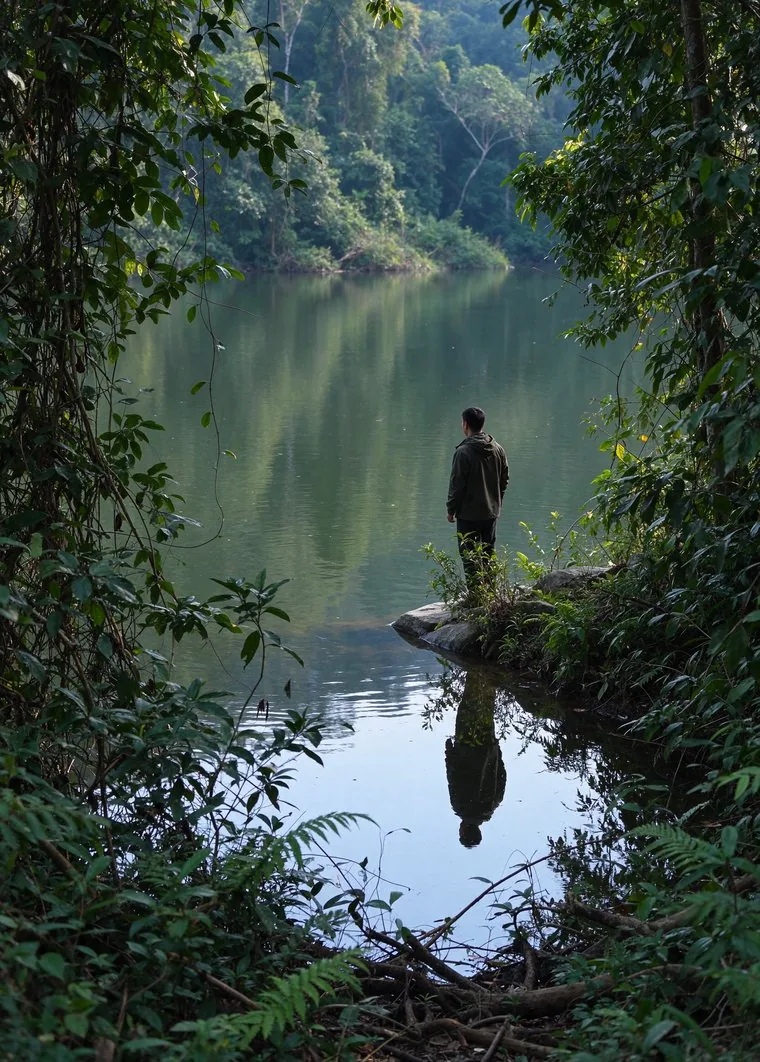
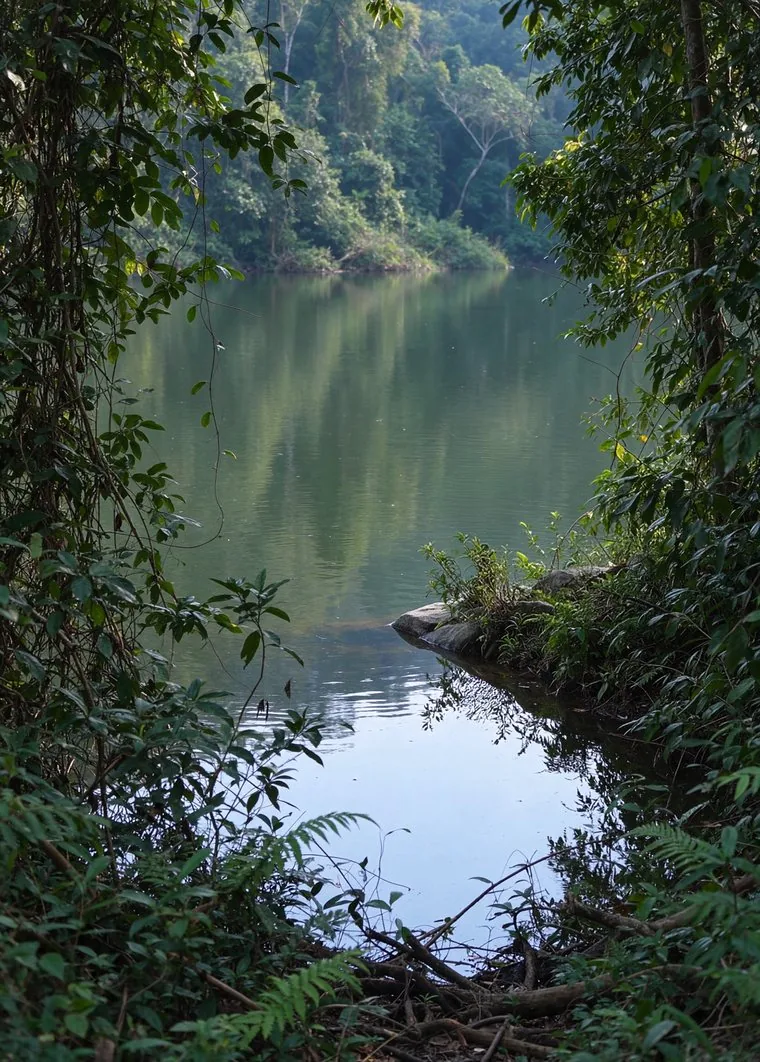
It found the reflection by itself, which is clever. Then I looked closer.
Does removing an object change the rest of your photo?
With Remove related elements, it did. When I switched its layer on and off, the whole photo shifted slightly, not just the area around the man. So I compared the two layers pixel by pixel: 36% of the photo's pixels changed by more than 6 levels out of 255. Every pink pixel below changed.
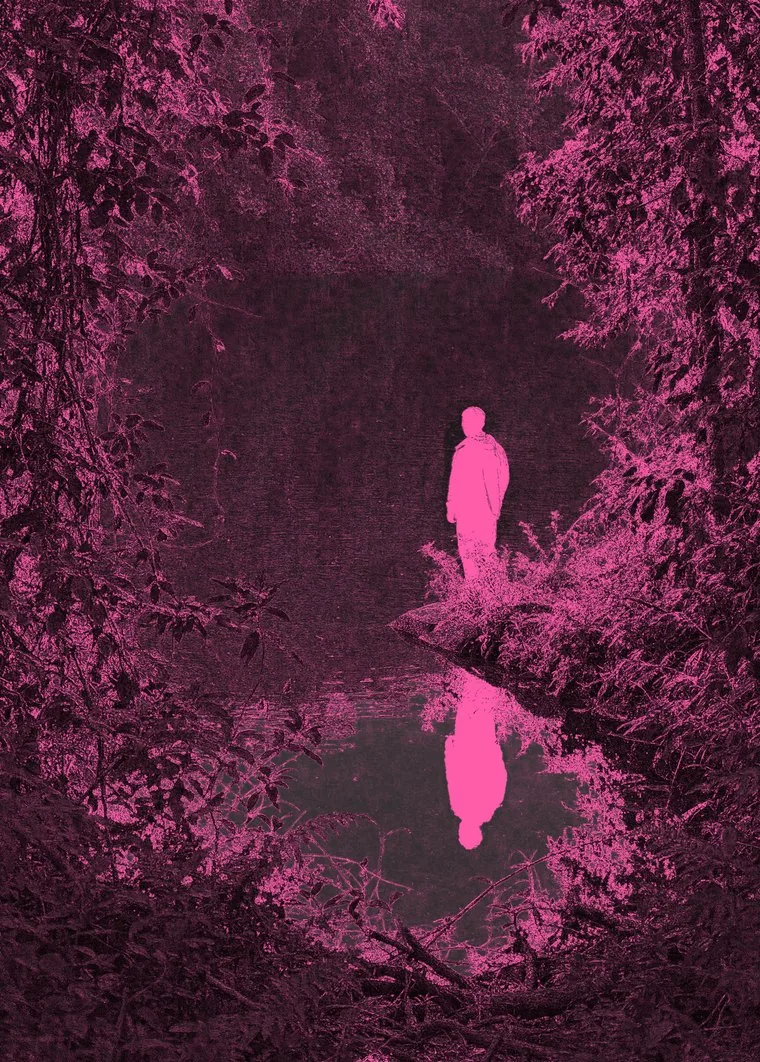
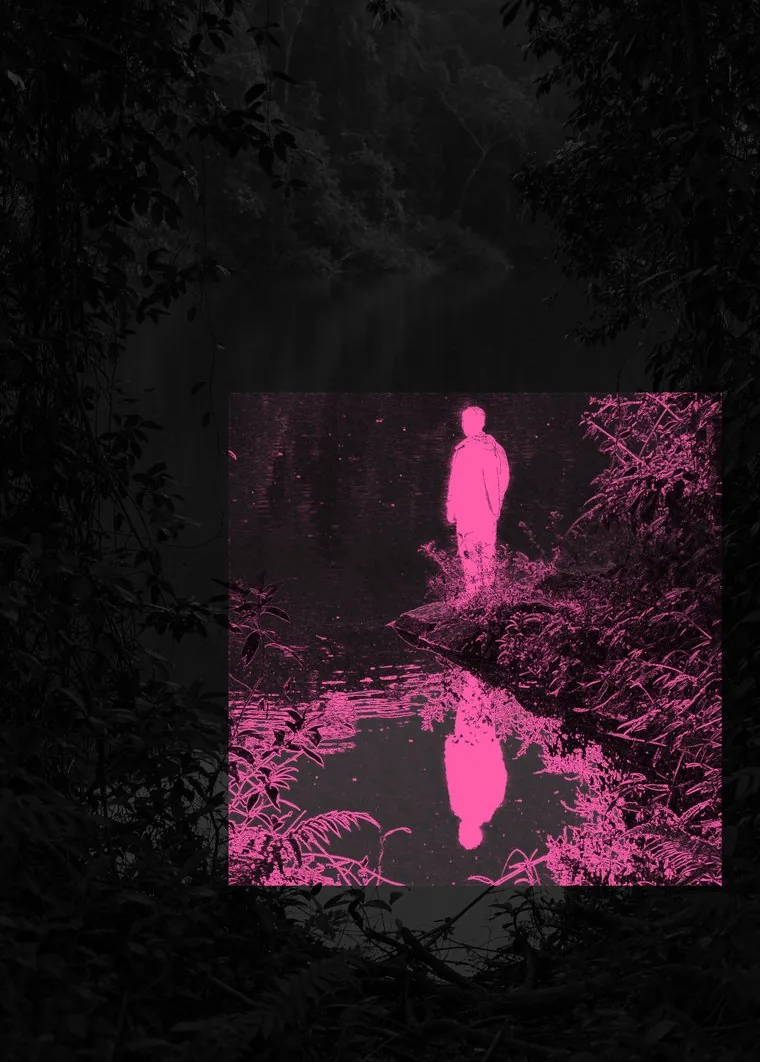
On a lake it hardly shows. On a face it can: as I said in the video, "it may disrupt the face". In PiXimperfect's tests, reported by Fstoppers, the whole image also dropped in resolution. The fix takes three moves:
- Add a layer mask to the result and fill it with black, with the Paint Bucket.
- Take a white brush at 100% opacity.
- Paint back only the object and its reflection. Everywhere else, you see your original again.
You can check any removal the same way: put the result over the original and set its blend mode to Difference. Anything that isn't black has changed. Or click Quick Compare, also new in Photoshop 2027.
5. How do you remove an object without touching the rest?
Seedream 5.5, on Radbin's Create tab, is the model I use when an edit has to leave everything else alone. It edits only inside your selection and the result lands as a layer inside it, so by design nothing outside the selection can change. Watch (12:55)
- In the Radbin panel, open Create and choose Seedream 5.5. Set the size to 1.5K, which costs fewer credits, and the shape to 1:1.
- Hold Shift and draw a square selection around the object and its reflection.
- Type what to remove, for example remove the person with his reflection in water. That's the only prompt you need.
- Click Generate. About 20 to 25 seconds later the result is a new layer, for 3 credits (4 at 2K).
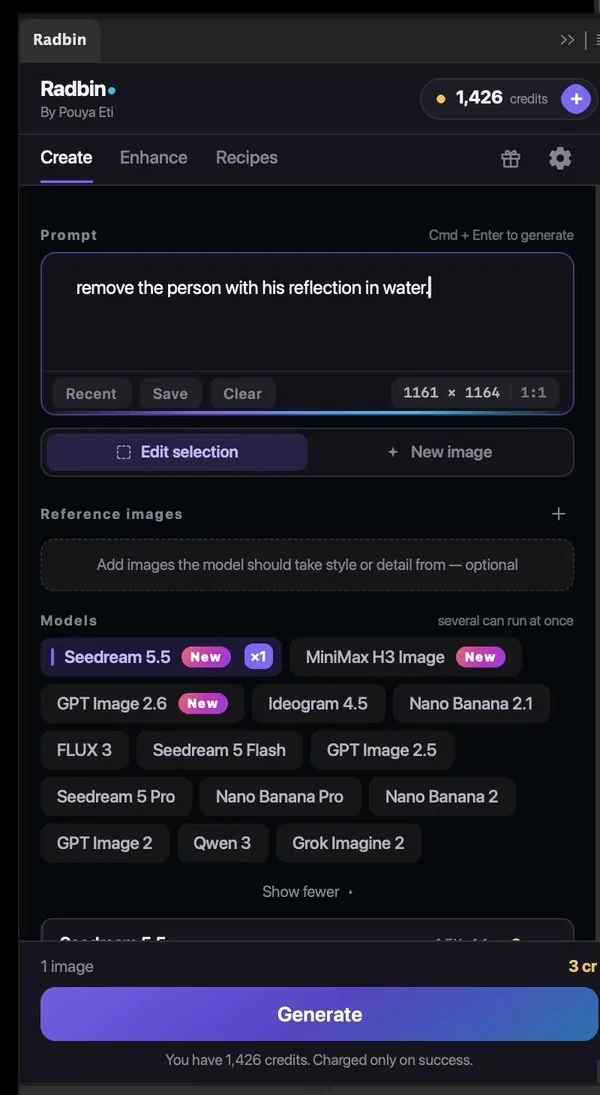
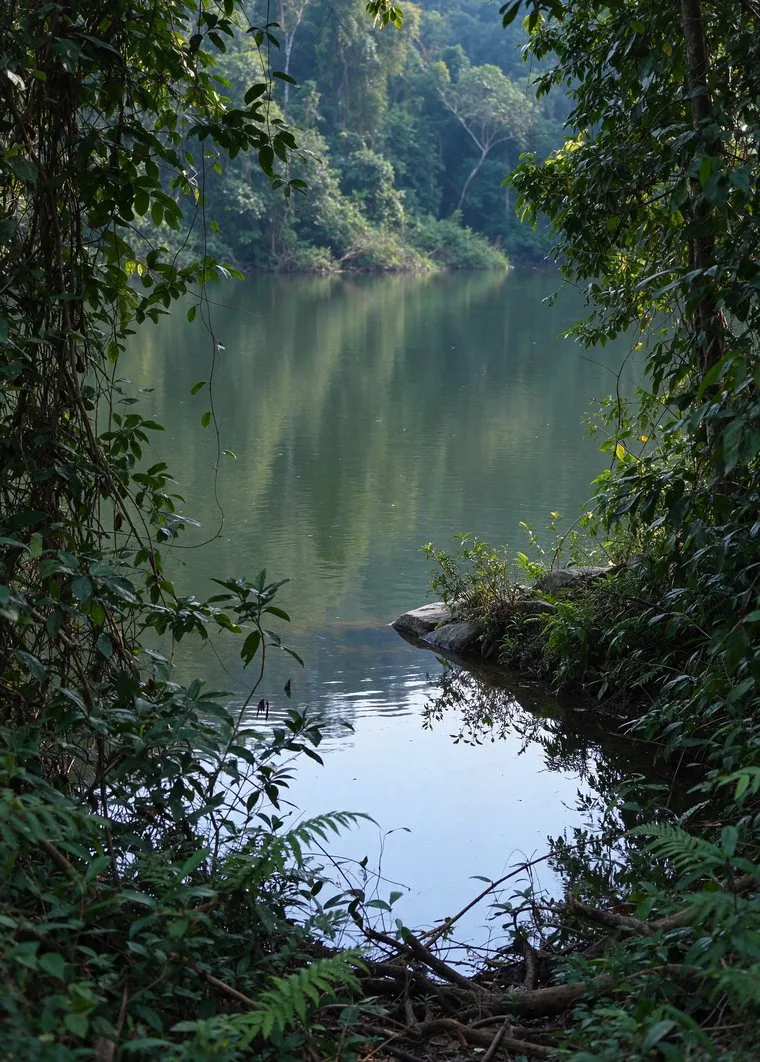
Mine came back a touch higher than the original, so I nudged the layer into place. Drawing the selection in a shape the model returns (1:1, 4:3, 3:4, 3:2, 2:3, 16:9, 9:16 or 21:9) helps it line up.
What does each way cost?
- Free: the Remove tool's brush, Find distractions, Content-Aware Fill, the Spot Healing Brush, the Patch tool and the Clone Stamp.
- Generative Fill: 1 generative credit a generation with standard Firefly, up to 40 with partner models.
- Remove related elements: 10 generative credits, plus 10 or 20 for Enhance on large photos.
- Seedream 5.5 in Radbin: 3 Radbin credits at 1.5K, 4 at 2K. On the Starter plan, $9.97 for 200 credits, that's about 15 cents a removal.
A single Photoshop plan's 25 monthly credits cover two uses of Remove related elements. All of Photoshop 2027's changes, with their costs: Photoshop 2027 new features.
Remove anything with one selection, inside Photoshop
Seedream 5.5 is on Radbin's Create tab, next to Nano Banana 2.1, GPT Image 2.6 and 15 one-click tools. From 3 credits, and a failed job refunds itself.
Watch Radbin on YouTube
Real tests and tutorials, inside Photoshop and Premiere. See the whole channel.
 19:57Claude Opus 5.5 edits my video in Premiere Pro
 16:20GPT Image 2.6 in Photoshop: images, vectors and GIFs
 7:37Upscale a low res portrait to 4K in Photoshop
 19:25Relight any photo in Photoshop with AI
 20:03Nano Banana 2.1 vs GPT Image 2 and FLUX 3: ten tests
 14:31Photoshop Relight vs Radbin Lightsmith
 10:24Retouch skin without losing the texture
 9:28Every Radbin tool in 9 minutes
 9:50Fix the focus of any photo after it was taken
 1:43Radbin changes only what you ask